Showing posts with label VS2013. Show all posts

Sunday, July 26, 2015

Rhino face-off, bouncy version

In my previous blog I thought to add a rhino to the game as a baddie.
So to recap, I had two versions, one as Rhino/Spacehopper hybrid the other as a proper animated version of a rhino.
This blog will follow my research into how to make the Rhino/Spacehopper hybrid.

Rhino face-off

So looking around in the Unity physics 2D I thought I'd start with the ball. In Shuffa ball I have a script for the ball, a RigidBody2D and a circle collider 2D so I added the same.

Unity editor after adding Rhino script, RigidBody2D and Circle Collider 2D

Then in the script I add code to apply force to the rigidBody2D. This little snipit says if the velocity is less than 5 add I to the force, by putting it in the fixedUpdate as opposed to every frame it does it at a fixed time. If every frame, different machines have different frame rates.

Rhino script in VS2013 Community edition

Here I use VS2013 Community edition, I tried MonoDevelop that comes with Unity, but found the Intellisense a bit flaky. Using Visual Studio at work everyday, I am too used to the Intellisense working and all of the keyboard shortcuts, so I changed to the VS2013 community edition.

Running the scene, everything worked as normal, then I wanted to add the Rhino head, this is where I went looking through various Physics 2D components.

The thing that seemed most obvious to me was the Wheel Join 2D, this seemed what I wanted. I connected my wheel joint 2D from the wheel to the head of my rhino, which seemed the obvious way but it really didn't work as I expected. 
Then I found on the internet that you connect from the head to the the wheel, that was better but again didn't look right. So I added a small wheel at the front of the head. Then for movement you have a motor not the FixedUpdate function above.

It was OK but not the vision I had for my Rhino ball, it was more like a Rhino bike than a Rhino ball.

Click here to see a video of the Rhino motor bike in action.

Rhino bike

Next I tried the Spring Join 2D, this is like car suspension. Added two to the head and then I stopped the head from rotating on the Z axis. This gave more of the effect I was after.

Rhino with 2 Sprint joint 2D


Wednesday, July 22, 2015

Creating scrollable background tiles with Inkscape

In this blog I will go through how I easily created the background tiles for my game Shuffa ball:Endless roller. In playing about with Inkscapes layers I came up with this idea for exporting multiple backgound tiles with no need to line things up.

In unity it seems to me 100px is 1 unit in unity, so I created a rectangle 400px by 1000px, the colour is not important as the rectangles will be below what we want to export later and therefore won't be seen.


Exporting the rectangle now calling it 1.PNG, this will allow all others to have the same name which will make changing the names of the others easier later.

Next we will create duplicates of this rectangle; with the rectangle selected press CTRL+D to duplicate, do this several times. All of the rectangles are in the same place, we want them side by side so we use the Remove Overlaps in the Align and Distribute tab (Ctrl+Shift+A).


So left drag over the rectangles which will select them all then press the Remove Overlaps button.
This should expand to look like below with all aligned with no overlap.


Click on each rectangle and click export PNG, change the name from 2->8.PNG then export them. We do this now as later on we will be batch exporting the 8 tiles and it makes it easier.

The next thing we do is add the actual image we want to export so add a new layer (Ctrl+Shift+L). 
Call this layer Background, whatever we draw in this level is what we want to be exported. 
Rename Layer 1 as tiles.

After finishing the drawing on the background layer, we want to hide this level. To do that click on the little eye icon in Layers tab which will hide the background level.

This should leave all of the tiles visible on the tiles Layer, so select all of the tiles.


Then when you click again on the eye on the background level, you will see your background drawing with the tiles selected underneath.

The next stage is to batch export the selected objects. Make sure "Hide all except selected" is NOT selected. If you did that you will get the grey rectangles exported.


Click the export and we should see 1->8.PNG exported.


You can see these background tiles in action by visiting my Game Jolt page that has a playable demo,
or look at this video.


Monday, July 20, 2015

Shuffa ball: Endless Roller


After writing Shuffa ball it gave me the idea for another game. It will be an endless runner style game but with a ball, so I’m calling it Endless Roller.
It will use the same physics as Shuffa ball, but with a play area much, much wider. Endless in fact.

The process of writing this game I’ll document in this blog, most decisions regarding the game I haven’t made yet.

GamePlay

The gameplay is made up of multiple obstacles, when you touch and slide down on an area of the screen; the obstacles come down with you. Then, when you release they snap back into place, applying a force to the ball.  For the obstacles I use object pooling, a number are created at start-up but are inactive. Then when needed they are set as active off screen to the right and move into the frame as the camera follows the ball. Then when they go off screen to the left they are set as not active ready to be reused later.


The ball tries to maintain a constant velocity, if it is going slower than X then force is added; if faster that is OK, that speed will naturally be lost through bouncing against the obstacles.
I haven’t yet decided on the purpose of the game.
What stops the game, how do you die or run out of time.
What is the goal, is it a distance or completing an action.
Hi scores are they points or time to complete.

Backgrounds

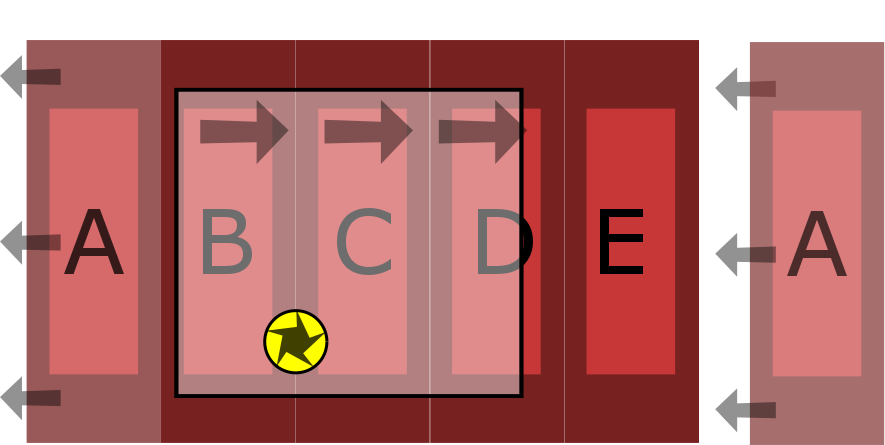
Here it will tile the various backgrounds, as we move to the right it will take the background tile A and place it next to the E.
To do this we need to have a trigger point in each tile that says if the tile goes off screen to the left move it all the way to the right, which will be off camera so we won’t see it happen.


The ball will be followed by the main camera. The tiles in the background will move at a slower speed than the foreground, this is called parallax scrolling.
We can create multiple levels of background, the furthest from the camera being the slowest, nearer the camera progressively faster.

Like Shuffa ball, Endless roller will be written in Unity, here is how the backgrounds look in the Unity editor.


Click here to see the background scrolling in action.

I have a playable demo of the game so far. It is on Game Jolt, I'll be updating this every now and again as this blog progresses.